What it's for
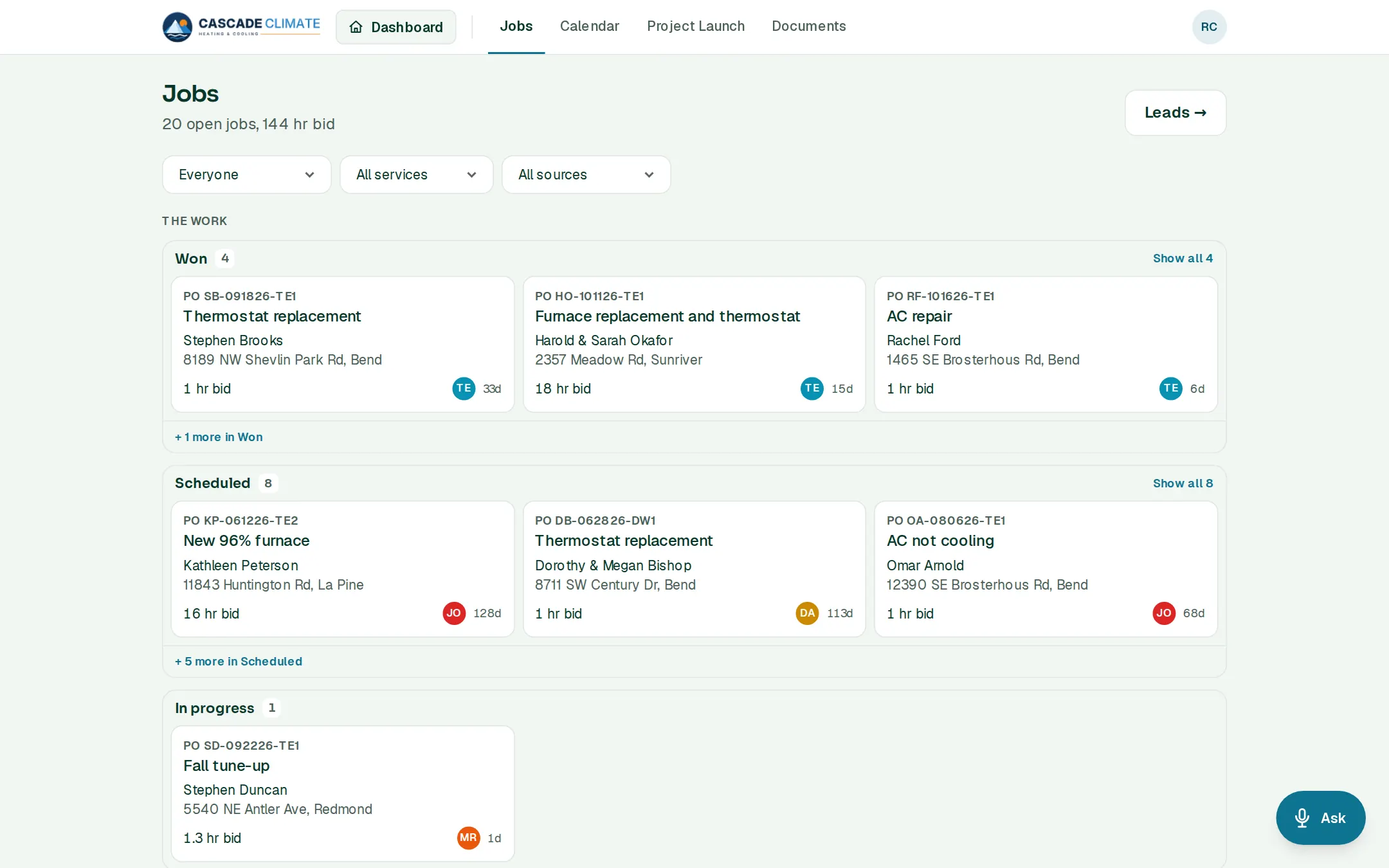
Every job and where it stands, at a glance: what's sold and waiting, what's scheduled, what's under way, and what's done but not paid yet.
How it works
- A job appears when a proposal is signed, or when you tap Create job manually on a customer's page.
- Five columns: Won → Scheduled → In progress → Completed → Paid. Drag a card, open the job and move it, or tell Ask: "Move the Lee job to in progress."
- Booking a job visit on the calendar moves a won job to Scheduled.
- Each card shows the customer, the address, the hours bid and who's on it. Filter by person, service and lead source.
- A job's page has the customer, the address, the schedule, estimates, change orders, invoices, checklists, documents and the timeline, with one next step button at the top that says what to do now.
The timeline
- Notes, visits, texts, signatures and payments land on the job's timeline as they happen.
- Type a note under Timeline, or say it to Ask: "Add a note to the Patel job: gate code 4471."
What it connects to
- Estimates: a signed package becomes the job.
- Calendar: visits schedule the job.
- Project Launch: the handoff to the crew before it starts.
- Invoices and Job Costing: billing it and seeing what it made.
Good to know
- Crew see only the jobs assigned to them, with no prices.
- Change orders live on the job, signed by the customer the same way as the estimate.