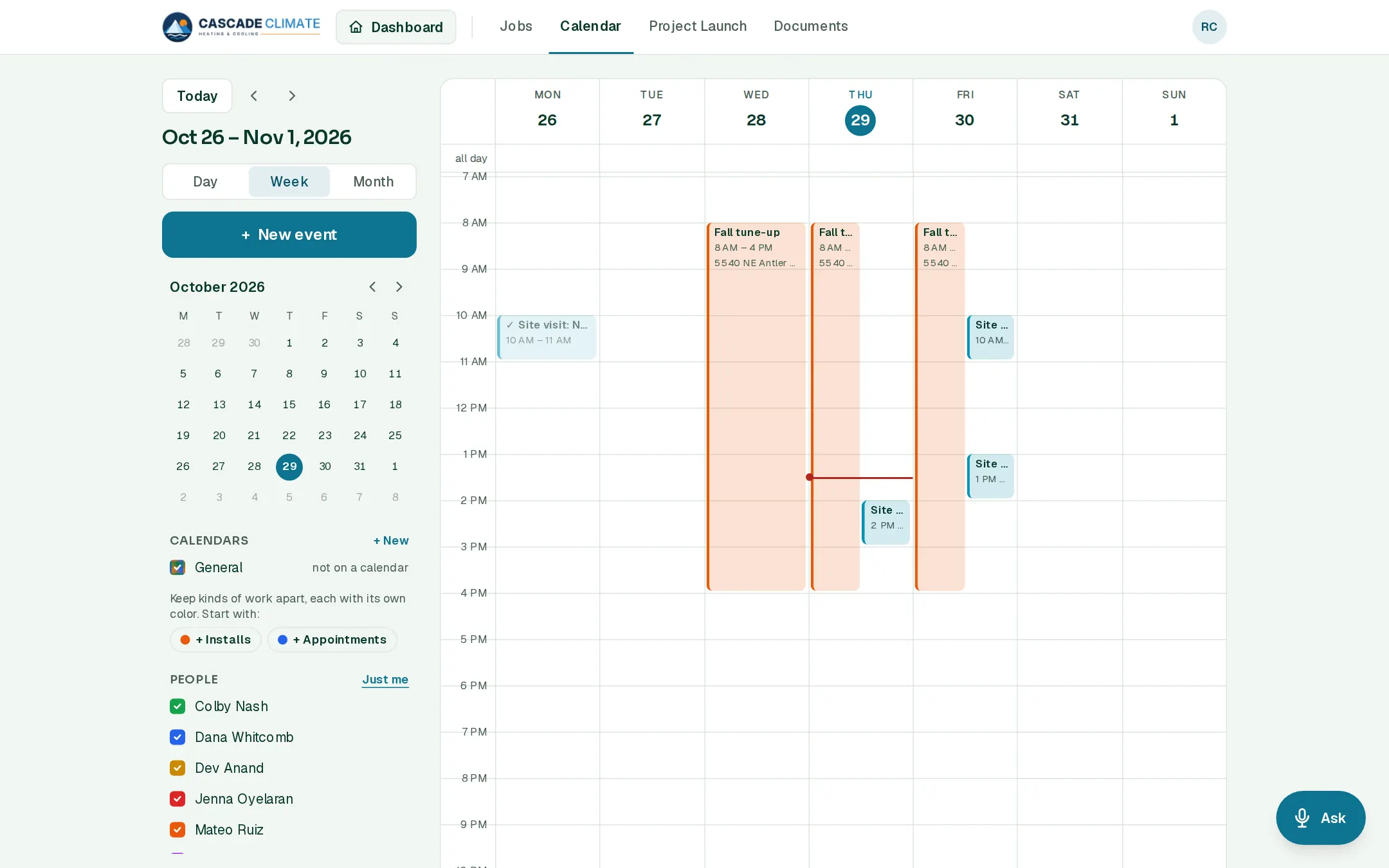
What it's for
What's planned, for who, and when, in one place the office and the crew both trust.
How it works
- Tap + New event, or tap a time on the calendar, to book an appointment, a job visit or anything else. A job visit moves a won job to Scheduled.
- Day, week and month views. Show just yourself, a few people, or everyone at once, each in their own color.
- Make calendars for kinds of work, like Installs and Appointments, each with its own color.
- On a signed proposal, Schedule the project books the work and moves the job along.
- Move or cancel a visit by voice: "Move the Thornton visit to Friday at 2."
Syncing
- The owner picks Google or Microsoft once, then each person signs in to their own account from the Calendar page.
- BrycoOps events show on their own calendar, and theirs show in BrycoOps, greyed, so nobody gets booked over a dentist appointment.
On the day
- The crew see their visits on the phone, with directions.
- On my way opens a text to the customer, ready to send: "I'm on my way and should be there around 9:40." The job's timeline notes it.