What it's for
The handoff from the sale to the crew. Everything the crew needs to know before they roll, checked by the office first, so nobody finds out on site that the parts never got ordered.
How it works
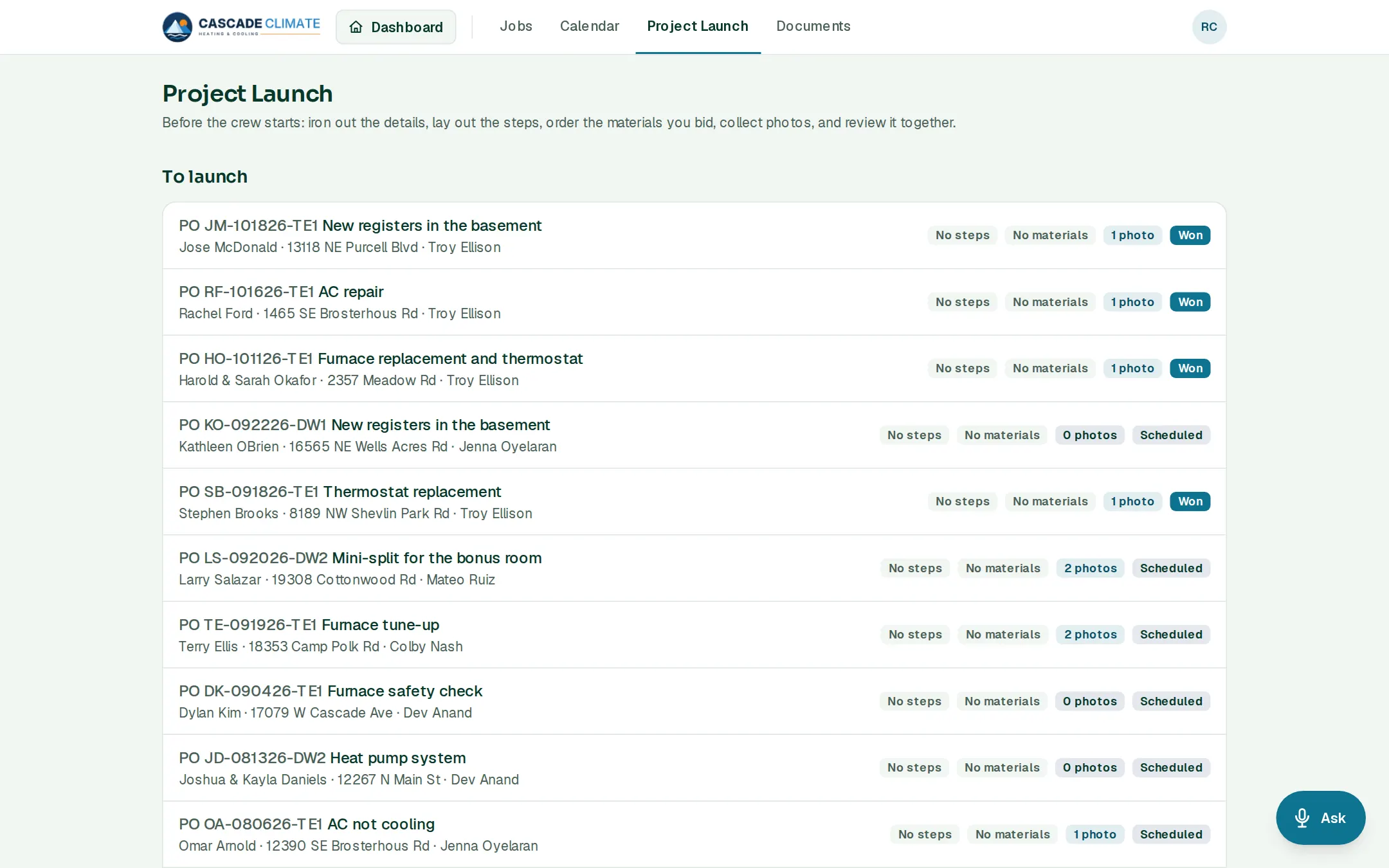
- Jobs that are won or scheduled show under To launch, with how many steps, materials and photos each one has.
- Go over the job's details and the customer's notes.
- Lay out the steps of the job.
- Order the materials you bid: the list comes straight from the estimate, you pick the vendor, and the order goes to them.
- Look through the Before photos taken while bidding.
- Print the crew briefing, with no prices on it, and tap Reviewed with the crew when you're done.
What it connects to
- Estimates: the materials list and the scope come from the signed package.
- Photos: photos tagged Before on the estimate show up here.
- Jobs and Calendar: launch it, then it's scheduled and under way.
Good to know
- Your suppliers live under Settings → Lists & templates → Vendors.