What it's for
Proof of what was there, what you did and how you left it, on the job where it belongs instead of in five people's camera rolls.
How it works
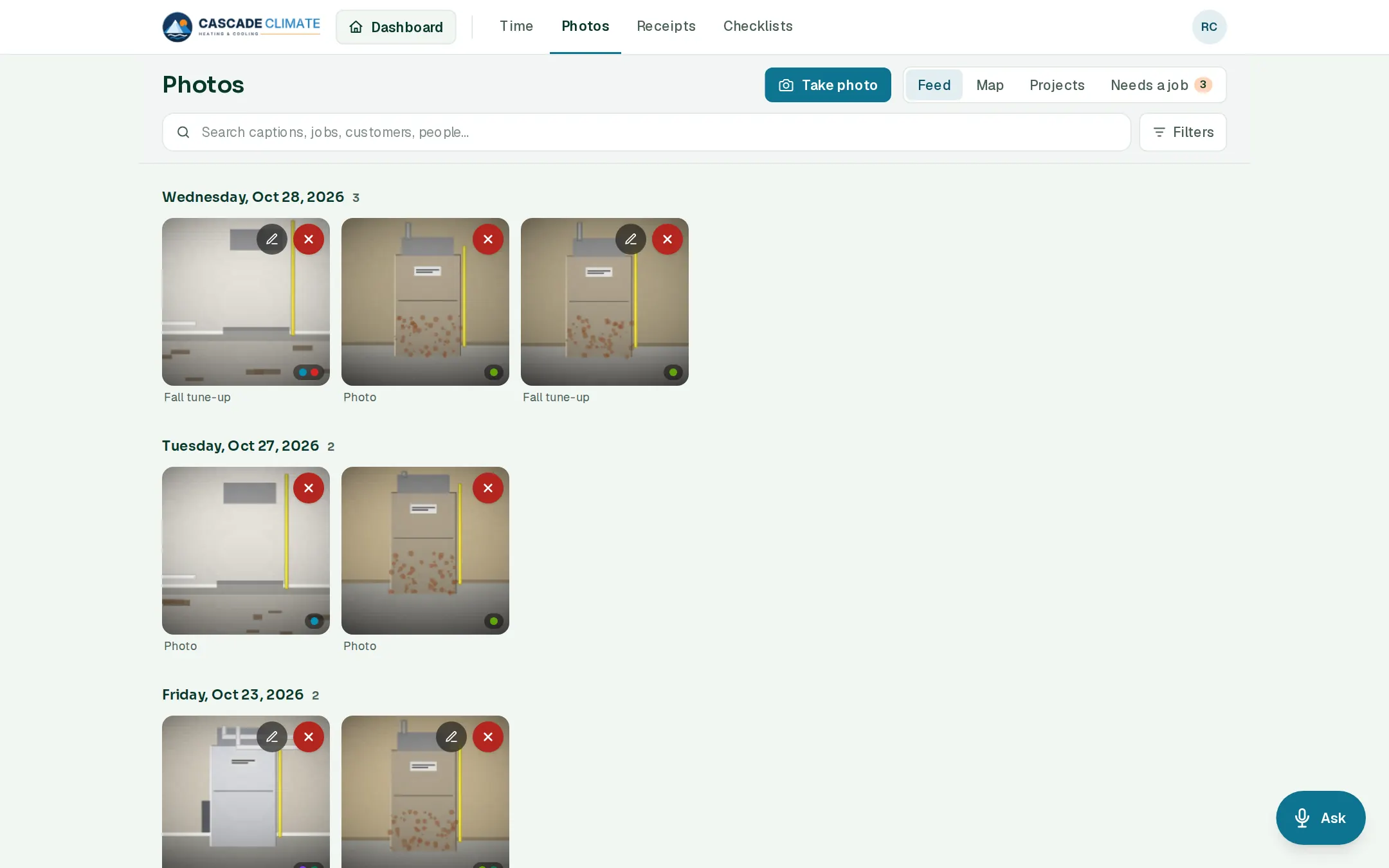
- Take photo, add a note, and file it onto a job now or later. Photos waiting for a job collect under Needs a job.
- On an estimate, Snap and Video sit at the top, so the photos from the bid stay with the bid.
- Tag photos (Before, After, Damage, or your own tags), comment on them, and mark them up with arrows and notes.
- Browse by day in the Feed, on a Map, or by project, and search captions, jobs, customers and people.
Where photos go
- Before photos from the estimate show up in Project Launch for the crew.
- Tick photos and videos on an estimate's Final details and they go out with the proposal.
- Photos taken with no signal wait on the phone and upload when it's back online.
What it connects to
- Estimates: photos and videos from the bid, sent with the proposal.
- Project Launch: the Before photos, for the crew.
- Jobs: every photo is filed on its job.
Good to know
- Photo tags are your own list, under Settings → Lists & templates → Photo tags.